

[ BOOTING_ANDROID_14 ]
BVT EMULATOR Android · Games · Private network Android apps on your Windows PC.
- 10 $DEVICES_AT_ONCE
- 4 $SCREEN_SIZES
- 3 $NETWORK_SWITCHES
- 14 $ANDROID_VERSION
"Your phone, on your PC"
BVT EMULATOR runs Android 14 inside a Windows program. Make phones and tablets, start up to 10 at once, and play Android games with your mouse and keyboard. Every device keeps its own apps and sign-ins, and can have its own VPN, Proxy and DNS that change by themselves every few minutes. With your BitVault ID, the Android app and the web app show your devices and start or stop them from anywhere.
Free · No card · Windows 10 and 11, 64-bit · Android app · Early access · Built by BitVault
SCROLL_TO_ENTER[ /LIVE_DEVICES ]
The device board
Every phone and tablet on your PC, its screen, its memory, its network and what it is doing right now.
Example devices. Each device is a separate Android with its own apps, data and sign-ins, stored on your PC. When a device's VPN or Proxy stops, its kill switch stops that device's internet until the next address answers, so it never falls back to your own connection.
[ /HOW_IT_WORKS ]
Five steps
The first start takes a few minutes for the Android engine download. After that, a new phone is one button and starts in about a minute.
- ◆ Step 1
/PC_CHECK/
Check your PC
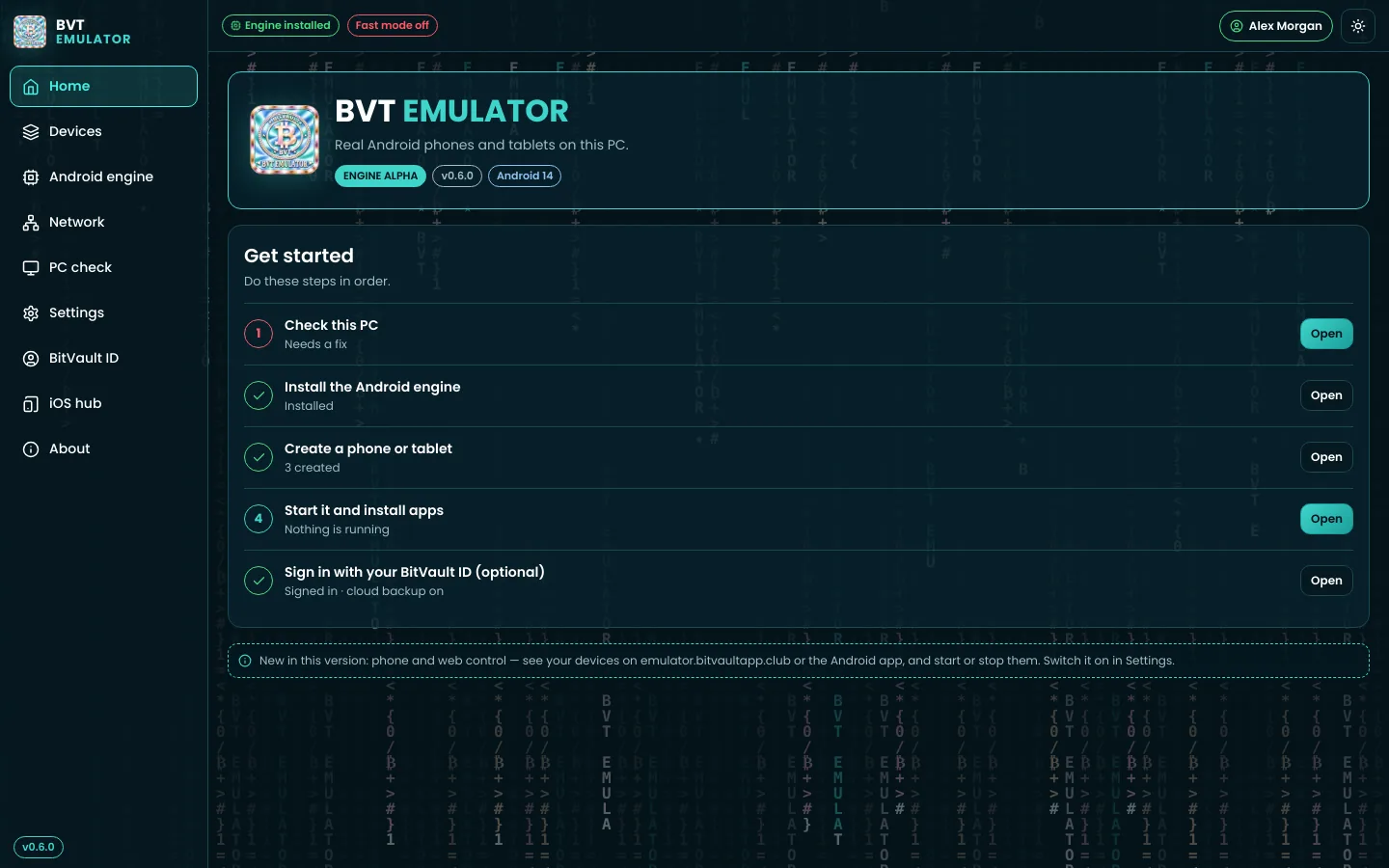
BVT EMULATOR checks Windows, memory, disk and whether your processor's virtualization is on. If Windows Hypervisor Platform is off, one button turns it on (Windows asks once, then a restart).
⚡ 1 button✓ Plain words - ◆ Step 2
/ANDROID_ENGINE/
Install the Android engine
One download from Google's own servers: the Android engine and Android 14. Every file is checked against Google's fingerprint, and a broken download continues where it stopped.
⚡ Android 14Checked - ◆ Step 3
/MAKE_A_DEVICE/
Make a phone or tablet
Choose phone, small phone, 10-inch or 12-inch tablet, give it 2 to 8 GB of memory and 2 to 8 processor cores, and a name. Make up to 10.
⚡ 4 sizesUp to 10 - ◆ Step 4
/PLAY/
Start and play
The Android screen opens inside BVT EMULATOR. Use the mouse as your finger, type with the keyboard, put game keys on the screen, and drag APK files on to install apps.
⚡ Mouse + keys✓ APK files - ◆ Step 5
/PHONE_AND_WEB/
Control from anywhere
Sign in with your BitVault ID and turn on phone and web control. Your PC and its devices show up in the Android app and the web app, with start and stop.
⚡ Start · stop✓ Your account only
READYGame phone
Android 14 · 1080 × 2400 · built-in screen · started in 52 sINSTALLEDan APK on Work phone
dropped on the screen · the app is in the app listCHANGEDVPN address on Game phone
every 10 minutes · new exit checked before use · address hiddenSAVEDScreen recording
Game phone · 2 min 14 s · in your Videos folder[ /PHONES_AND_TABLETS ]
Phones and tablets, side by side
Each device is its own Android: its own apps, accounts, files and settings. Start one or ten, and switch between them.
- Four sizes: phone, small phone, 10-inch tablet and 12-inch tablet. 2 to 8 GB of memory and 2 to 8 processor cores for each.
- The screen sits inside BVT EMULATOR, sharp, balanced or light. Old graphics drivers can use the device's own window instead.
- Rotate, take screenshots and record the screen to a video file with one button.
- Copy and paste between Windows and Android both ways, and drag files from Windows into the device.
- Install apps from APK files. Set a GPS location anywhere in the world and the battery level, for testing apps.
[ /VPN_PROXY_DNS ]
VPN, Proxy and DNS for every device
Three switches on every device. Each one can stay on one address, or move to the next address in your list by itself.
- VPN and Proxy: the device's internet goes through a server from your list: SOCKS5, SOCKS4, HTTP or HTTPS servers from your provider, or Tor running on your PC. Use both and the Proxy runs through the VPN.
- DNS: Android's Private DNS for that device, for example Cloudflare, Google, Quad9 or your own.
- Change address every 5, 10, 20, 30 or 60 minutes, or press Change now. The new address is tested before the device uses it.
- Hide addresses on screen, and keep the Network page out of screenshots and screen sharing.
- Kill switch: if a VPN or Proxy stops, that device's internet stops too. A leak guard inside Android blocks traffic that tries to go around it.
- Passwords for your servers are encrypted by Windows for your Windows user.
[ /GAMES ]
Play with mouse and keyboard
A big screen, a real keyboard and a mouse. Put keys on the game's buttons once, and every device remembers them.
- ◆ Game keys
/KEY_MAP/
Keys on the screen
Drop a key on any button of the game. Add a WASD or arrow-key joystick for walking. Each device keeps its own keys, and your BitVault ID can keep them in the cloud.
⚡ WASDBeta - ◆ Screen
/BUILT_IN_SCREEN/
Smooth picture
Choose sharp, balanced or light. Light uses less of your PC and gives more pictures per second. Graphics run on your graphics card, or in software on old drivers.
⚡ 3 levels✓ Full screen - ◆ Many at once
/MULTI_DEVICE/
More than one game
Run a game on one phone and chat on another, or test your app on a phone and a tablet at the same time. Stop all devices with one button.
⚡ Up to 10Stop all
Follow each game's rules. Some games do not allow emulators or more than one account per person; BVT EMULATOR does not hide itself from games or help to break their rules.
[ /PHONE_AND_WEB ]
Your devices, everywhere
Sign in on your PC with Google or email, and turn on phone and web control in Settings. Then open the Android app or the web app with the same BitVault ID: your PCs and their devices are there.
- 1 account
- BitVault ID, Google or emailthe same account on your PC, your phone and the web
- 1 tap
- Start, stop, stop allany device on your PC, from wherever you are
- Cloud backup
- Settings and game keyssign in on a new PC and get them back
Phone and web control is off until you switch it on in Settings on that PC. Your phone sees only device names and whether they run, and can ask to start or stop them. It never sees the screen, your apps, files, VPN or proxy details. Requests older than 2 minutes are ignored.
[ /SOFTWARE ]
The software itself
Real screens from the Windows app, version 0.6.0, shown with example devices.
[ /FREE ]
Free, all of it
BVT EMULATOR is free during early access: every feature, every device, no card and no advertising.
Devices
10
phones and tablets at once
Free
Network
3
VPN, Proxy and DNS on every device
Free
BitVault ID
Free
Google or email, optional
Backup + phone control
Android app
Free
and the web app
Early access means the Windows app works and is being improved every week. Some things are not in this version yet: Google Play, apps made only for phone (ARM) processors, WireGuard files, gamepads and macros. The VPN and proxy servers themselves come from your own provider; BVT EMULATOR does not sell them.
All devices share your PC's processor, memory and internet. Start as many as your PC handles well.
[ /PLATFORMS ]
Windows, Android and the web
Android runs inside BVT EMULATOR on your Windows PC. The Android app and the web app sign in to the same BitVault ID and show your PCs and their devices, with start and stop wherever you are.
/WINDOWS/
Windows app (.exe)
Windows 10 and 11, 64-bit. One portable file: download and open, no installing. Android runs here.
Download for Windows/ANDROID/
Android app (.apk)
Your devices on your phone, full screen, with start and stop. Android asks once to allow installing from the browser.
Download for Android/BROWSER/
Web app
iPhone, Mac or any computer. Sign in, see your PCs and devices, and start or stop them. Nothing to install.
▶ Open the web app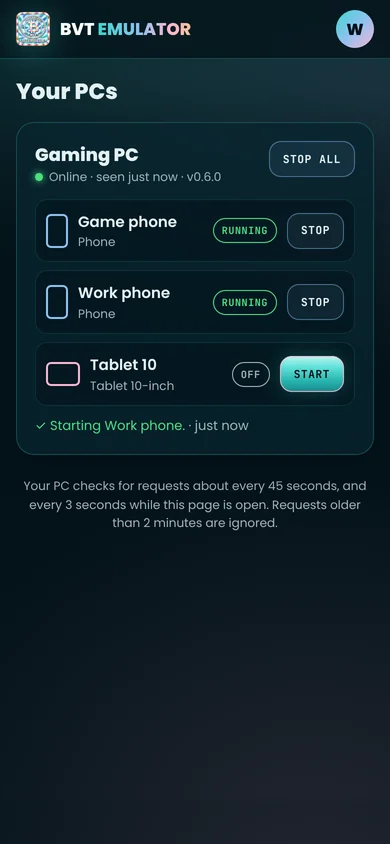
There is no Chrome extension. iPhone and iPad App Store apps cannot run on Windows in any emulator, so BVT EMULATOR does not promise them; the iOS hub in the app explains the honest options that are planned.
[ /FAQ ]
Questions
What is BVT EMULATOR?
A Windows program that runs Android on your PC. You make phones and tablets inside it, start them, and use Android apps and games with your mouse and keyboard. You can run up to 10 devices at once, and give each one its own VPN, Proxy and DNS.
Can it run iPhone and iPad apps?
No, and no program can. Apple locks App Store apps to Apple devices, so they do not open on Windows in any emulator. The iOS hub inside BVT EMULATOR explains this and shows the honest options that are planned: developers' own apps on a cloud Mac, very old 32-bit games you already own, and mirroring your own iPhone's screen. None of them works yet.
Is Google Play inside?
Not in this version. Android inside BVT EMULATOR is the open-source Android 14, without Google's apps. You install apps from APK files: drag the file onto the device or press Install APK. Apps that need Google Play services may not work.
Will every Android game run?
Most apps and games built for 64-bit Intel and AMD processors run. Some apps are made only for phone (ARM) processors and do not start yet. Some games refuse to run in any emulator; BVT EMULATOR does not try to trick them.
What does my PC need?
Windows 10 or 11, 64-bit, with virtualization switched on in the PC's BIOS (Intel VT-x or AMD-V) and Windows Hypervisor Platform (the PC check turns it on for you). At least 8 GB of memory is best, plus about 4 GB of free disk space for the Android engine and 2 GB or more for each device.
Why does Windows warn me when I open it?
The file is not code-signed yet, so Windows SmartScreen may say "Windows protected your PC". Download only from this site and compare the SHA-256 fingerprint on the download page. Then choose More info and Run anyway. Code signing is being set up.
What is the Android app?
Your remote for BVT EMULATOR. Android apps run inside BVT EMULATOR on your Windows PC; the Android app signs in to the same BitVault ID and shows your PCs and their devices, with start, stop and stop all, from anywhere. The web app does the same in any browser, also on iPhone.
How do the VPN, Proxy and DNS work?
Each device has three switches. VPN and Proxy send that device's internet through a server from your own list (SOCKS5, SOCKS4, HTTP or HTTPS servers from your provider, or Tor on your PC); DNS sets Android's Private DNS. Each can change to the next address every 5, 10, 20, 30 or 60 minutes, and its address can be hidden on screen. If the VPN or Proxy stops, the kill switch stops that device's internet instead of using your own. WireGuard files are coming in a later version.
Do I need an account?
No. Everything works without one. With a free BitVault ID (Google or email) your settings and game keys are kept in the cloud, and you can use phone and web control.
What does BVT EMULATOR send over the internet?
The Android engine is downloaded from Google once. With a BitVault ID: your email, name and app version, and the backup of your settings and game keys. With phone and web control on: your PC's name and your devices' names and whether they run. Your Android apps, their data, your screen, your files and your VPN and proxy details never leave your PC.
How do I remove it?
Delete BVTEmulator.exe. Your devices and the Android engine stay in %LOCALAPPDATA%\BVTEmulator until you delete that folder too, or press Remove engine on the Android engine page first.
[ /CONTACT ]
Talk to us
A question, an app that will not start, a problem with your PC or an idea: write to us. We reply by email.